-
 Written by Jason Letts
-
June 8, 2026
-
4 minutes
IPTV for Firestick: Comprehensive Setup, Legal Streaming Options, and Troubleshooting Guide
Key Takeaways
- IPTV Benefits: IPTV offers a flexible and cost-effective alternative to traditional cable, allowing access to a variety of live TV channels and on-demand content.
- Setup Simplicity: Setting up IPTV on your Firestick is straightforward with the right guidance.
- Legal Services: Focus on legitimate IPTV services to avoid legal pitfalls and enjoy reliable streaming.
- App Selection: Choose an IPTV player that best suits your needs from options like TiviMate, IPTV Smarters Pro, or Perfect Player.
- Troubleshooting: Many common issues can be resolved with simple adjustments, ensuring a smoother streaming experience.
What is IPTV on Firestick?
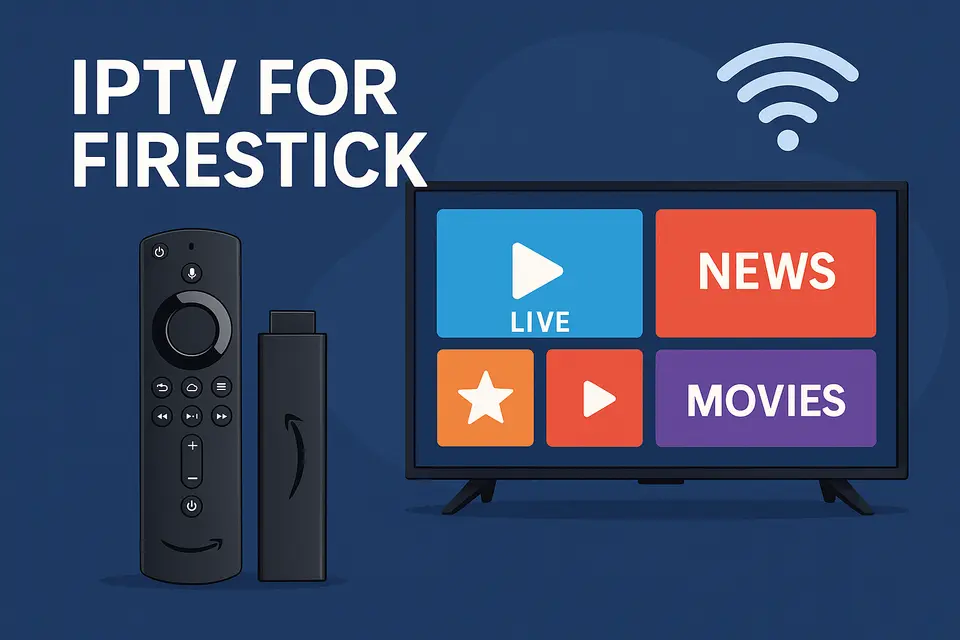
IPTV (Internet Protocol Television) allows streaming live television programming through your Firestick device over the internet. The system uses your broadband connection to deliver channels directly to your TV, enabling a cable-like experience without the associated costs. This technology offers:
This seamless integration allows Firestick users to access countless channels from around the globe.
Best IPTV Services for Firestick
When seeking the best IPTV for Firestick, prioritize services that uphold legal standards while offering dependable streams. The following services are highly recommended:
Top Legitimate IPTV Options
- YouTube TV: Offers over 100 channels with unlimited cloud DVR storage.
- Sling TV: Flexibility with various package options for budget users.
- Hulu + Live TV: Combines live content with an impressive on-demand library.
- Pluto TV and Plex Live TV: Free options providing multiple ad-supported channels.
Local IPTV services often offer great value for region-specific content like news and sports.
Step-by-Step IPTV Firestick Setup Process
The process for IPTV Firestick setup is straightforward and can be completed in about 15 minutes. Follow these steps for optimal results:
Step 1: Prepare Your Firestick Device
- Navigate to Settings → My Fire TV → About and check for updates.
- Connect to a stable internet connection with at least 25 Mbps for HD streaming.
- Sign into your Amazon account to access apps.
Step 2: Choose Your App Installation Method
- Amazon Appstore (Recommended): This is a safe choice for official apps.
- Sideloading: For advanced users wanting to use apps not available in Appstore.
Step 3: Install Your Firestick IPTV App
Popular choices include TiviMate and IPTV Smarters Pro. Each offers unique features to enhance your viewing experience – learn more about TiviMate here.
Step 4: Configure Your IPTV Source
Enter the provided connection details for your IPTV service:
- M3U URL, Xtream Codes Login, and EPG URL.
Step 5: Optimize Playback Settings
Comparing Top Firestick IPTV Apps
Different Firestick IPTV app options offer unique features:
TiviMate
- User-friendly interface and channel customization.
- Supports multiple playlists for various content.
IPTV Smarters Pro
- Suitable for various IPTV services with excellent compatibility.
- Parental control features and multi-screen layouts.
Perfect Player
- Simple and effective design focused on usability.
- Strong EPG integration for accurate channel info.
Troubleshooting Common IPTV Issues
Here are solutions for typical problems:
Buffering Problems
- Test your internet speed.
- Reduce streaming quality settings.
- Restart your devices (router/modem/firestick).
Login and Authentication Issues
- Verify credentials and check subscription status.
Legal Considerations and Safety Practices for IPTV
Understanding legal aspects safeguards against copyright issues. Choose services with clear licensing, and remain aware of regional streaming laws. For more on this, visit this deeper look at legality.
Frequently Asked Questions
Yes, modern Fire TV Stick models support IPTV applications well, though older versions may have some limitations.
A minimum of 15-25 Mbps is recommended for HD streaming, while 35+ Mbps is ideal for 4K content.
Yes, multiple apps or playlists can be configured within a single IPTV app.
Buffering may occur due to server overload, routing issues or device limitations.
VPN usage is optional; it can help with privacy and reduce ISP throttling.

 Written by Jason Letts
