July 7, 2026

 Written by Jason Letts
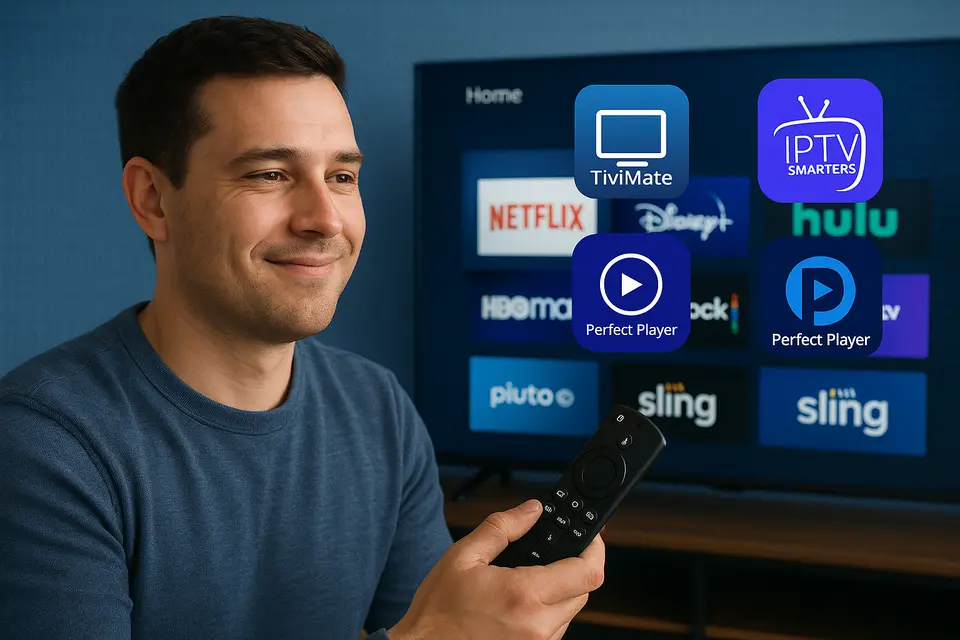
IPTV for Firestick simply means using your Amazon Fire TV Stick to stream live TV channels and on-demand content over the internet instead of traditional cable or satellite. Your Firestick becomes one of the most popular ways to watch IPTV because it’s inexpensive, portable, and supports a wide range of streaming apps right out of the box.
Picture this: you’ve cut the cord on expensive cable bills, but you still want access to live TV, sports, and your favorite shows. Your Firestick can transform into a complete entertainment hub that delivers thousands of channels through your internet connection. The setup takes less than 30 minutes, and once configured, you’ll have access to content that would normally cost hundreds of dollars per month through traditional providers.
This comprehensive guide covers everything you need to transform your Firestick into a fully functional IPTV streaming device:
IPTV (Internet Protocol Television) delivers television content through IP networks instead of traditional cable or satellite infrastructure. Think of it as receiving TV signals through your internet connection rather than through a cable box or satellite dish. This technology allows you to watch live channels, catch-up TV, and video-on-demand content from anywhere with a stable internet connection. Source
Your Firestick runs Fire OS (based on Android) and can install streaming applications that function as IPTV players. These apps organize and present content in a familiar TV guide format, making it easy to browse channels and programs. You simply sign into a legitimate IPTV service or add playlist information provided by your service, and the player handles everything else automatically.
IPTV services deliver content through three main methods:
The beauty of this system lies in its flexibility. You can switch between different IPTV services, test multiple providers, or even use several playlists simultaneously depending on your viewing preferences.
Your Firestick offers several advantages that make it an ideal choice for IPTV streaming compared to other devices. The remote-based navigation feels natural for TV viewing, and the familiar app grid interface eliminates the learning curve associated with more complex streaming devices. Source
The extensive app ecosystem sets Firestick apart from competitors. You get access to both the official Amazon Appstore and the ability to sideload Android APK files through apps like Downloader. This dual approach means you can install virtually any IPTV player available for Android devices, giving you flexibility in choosing the perfect app for your needs.
Portability becomes a major advantage if you travel frequently or want to use IPTV on multiple TVs throughout your home. The compact design fits in your pocket, and setup on a new TV requires plugging into an HDMI port and connecting to Wi-Fi. You can literally take your entire channel lineup anywhere.
Performance versus price makes Firestick incredibly cost-effective for IPTV. Newer models handle HD streaming smoothly and many support 4K content when paired with adequate internet speeds. Compare this to dedicated IPTV boxes that often cost several times more while offering similar functionality.
The popularity of Firestick also means abundant community support. You’ll find detailed tutorials, troubleshooting guides, and regular app updates specifically optimized for Fire OS. This ecosystem support makes problem-solving much easier compared to obscure streaming devices.
Determining the best IPTV for Firestick requires evaluating services based on specific criteria that directly impact your viewing experience. Focus on these key factors rather than falling for marketing hype or unrealistic promises.
Consider these service categories when evaluating options:
The key to finding the best IPTV for Firestick lies in matching service capabilities with your specific viewing habits and technical comfort level.
Setting up IPTV Firestick streaming involves choosing between two installation methods depending on whether your preferred IPTV app is available through the Amazon Appstore or requires sideloading. Both methods work reliably, but the Appstore route offers simpler maintenance and automatic updates.
Before beginning your IPTV Firestick setup, gather these essential components:
Installing IPTV apps through the official Appstore provides the most straightforward setup experience with automatic updates and official support.
Navigate to the Firestick home screen and select the Search option using your remote. Type the name of your chosen IPTV player such as “IPTV Smarters Player” or “TiviMate” and select it from the search results. Choose Download or Get to begin installation. Source
Once installation completes, the app appears in your Apps & Channels section. Select it to launch and begin the initial configuration process.
Sideloading becomes necessary for IPTV apps unavailable through the Amazon Appstore. This method requires enabling installation from unknown sources but provides access to a much wider selection of IPTV players.
First, install the Downloader app by searching for it in the Amazon Appstore. Look for the orange Downloader icon and install it normally. This app serves as your gateway for sideloading APK files.
Next, enable unknown sources by navigating to Settings > My Fire TV > Developer Options. Turn on Apps from Unknown Sources and specifically allow Downloader when prompted. This setting allows installation of apps outside the official Appstore.
Launch Downloader and enter the direct download URL for your chosen IPTV app in the address bar. Popular options include IPTV Smarters Pro, XCIPTV, and Perfect Player. Select Go and wait for the APK file to download completely.
When the download finishes, select Install and then Done once installation completes. You can delete the APK file through Downloader to free up storage space.
For easier access, pin your newly installed IPTV app to the front row by highlighting it in Apps & Channels, pressing the menu button (three lines), and selecting Move to Front.
Regardless of installation method, configuring your IPTV player follows similar steps across different applications.
Open your installed IPTV app and select the appropriate device type when prompted. Choose “TV” or “Android TV/Fire TV” for optimal interface scaling on your television screen.
For M3U playlist setup, select “Add Playlist” or similar option within the app. Paste your M3U URL into the provided field and assign a recognizable name for easy identification. Save the configuration and wait for the app to load your channel list. Source
Xtream Codes setup requires selecting the API or Xtream Codes option instead. Enter your server URL, username, and password exactly as provided by your IPTV service. These credentials authenticate your access to the service’s channel lineup and video-on-demand content.
Configure the Electronic Program Guide (EPG) if your service provides this feature. Add the EPG URL in the appropriate settings section and set your correct time zone for accurate program scheduling information. Source
Set up parental controls and user profiles as needed. Many modern IPTV players support PIN protection for adult content categories and separate viewing profiles for family members.
Optimize streaming performance by adjusting buffer settings, default video quality, and player preferences based on your internet connection speed and Firestick model capabilities.
Choosing the right Firestick IPTV app significantly impacts your streaming experience, as each player offers different strengths for various user types and technical requirements. Here’s a detailed breakdown of the most reliable options currently available.
TiviMate stands out for users who prioritize a modern, television-like interface with exceptional electronic program guide functionality. The app presents channels in an attractive grid layout that feels familiar to cable TV users, making the transition to IPTV seamless. Source
Strengths include superior EPG integration, multiple playlist support, and advanced channel management features like favorites, categories, and custom groupings. The interface responds quickly to remote commands and handles large channel lists efficiently.
The main limitation involves premium features requiring a paid subscription for full functionality. Free users get basic playback capabilities, but advanced features like multiple playlists, premium EPG, and recording require upgrading to TiviMate Premium.
IPTV Smarters Pro excels as a Firestick IPTV app for users who need flexible playlist management and Xtream Codes compatibility. The clean interface organizes content into logical sections for live TV, movies, series, and catch-up content.
This app supports virtually every IPTV input method including M3U URLs, M3U file uploads, and Xtream Codes API access. Setup wizards guide users through configuration, making it beginner-friendly despite offering advanced features.
Potential drawbacks include the need for sideloading on Firestick (not always available through Amazon Appstore) and interface performance issues with extremely large playlists containing thousands of channels. Source
Perfect Player appeals to power users who want granular control over playlist organization and display options. The app provides extensive customization capabilities for channel logos, EPG sources, and interface themes.
Notable features include robust playlist management, support for multiple EPG sources, and detailed playback controls. The app handles complex playlist structures well and allows fine-tuning of virtually every aspect of the viewing experience.
The learning curve can be steep for beginners, and the interface design feels dated compared to more modern alternatives. Configuration requires patience and technical understanding to achieve optimal results.
XCIPTV focuses specifically on IPTV services using Xtream Codes APIs, providing a streamlined experience for users with compatible subscriptions. The attractive dashboard design separates live TV, video-on-demand, and catch-up content clearly.
The app integrates deeply with Xtream-based services, offering features like series tracking, movie recommendations, and automatic EPG updates. Performance remains smooth even with large content libraries.
Limitations include primary focus on Xtream Codes (limited M3U support) and the requirement for sideloading installation on most Firestick models.
Select your Firestick IPTV app based on these decision factors:
For M3U playlists with excellent program guide features, choose TiviMate or Perfect Player. Both handle playlist files well and provide comprehensive EPG integration.
If your service provides Xtream Codes login credentials, IPTV Smarters Pro or XCIPTV offer the best compatibility and feature sets for API-based services.
Beginners should start with IPTV Smarters Pro due to its guided setup process, clear documentation, and support for multiple input methods.
Advanced users who enjoy customization will appreciate Perfect Player’s extensive configuration options and detailed control over every aspect of the viewing experience.
Even properly configured IPTV setups occasionally encounter technical difficulties. Understanding how to diagnose and resolve common problems saves time and prevents frustration during your favorite shows or live events.
Buffering issues typically stem from network connectivity problems or server-side limitations beyond your control. Start troubleshooting by testing your internet speed using the built-in Firestick speed test or a third-party app. Source
If speed tests show adequate bandwidth (25+ Mbps for HD content), examine your Wi-Fi setup. Switch to the 5 GHz frequency band if available, as it experiences less interference from household devices compared to 2.4 GHz networks. Position your Firestick closer to your router or consider using a Wi-Fi extender for weak signal areas.
Server-related buffering affects only specific channels or content sources. Test multiple channels from your playlist to determine if the issue is widespread or isolated to particular streams. Contact your IPTV provider if problems persist across multiple channels, as this indicates backend server issues. Source
VPN users should test connection performance with the VPN both enabled and disabled. Some VPN servers become overloaded during peak hours, causing streaming performance degradation. Try different VPN server locations or temporarily disable the VPN to isolate the problem source.
Authentication problems usually result from incorrect credentials or expired subscriptions. Double-check your M3U URL or Xtream Codes information by copying and pasting directly from your provider’s communication rather than typing manually.
Verify your IPTV subscription status through your provider’s customer portal or support channels. Many login failures occur because trial periods expired or monthly subscriptions lapsed without renewal.
M3U playlist syntax errors can prevent proper channel loading. Request a fresh playlist file from your provider if the app reports parsing errors or fails to display channels correctly. Some services offer multiple playlist formats optimized for different player applications.
Application crashes and freezing often resolve through clearing the app’s cache and data. Navigate to Settings > Applications > Manage Installed Applications, select your IPTV app, and choose Clear Cache and Clear Data. This resets the app to default settings, requiring reconfiguration of your playlists and preferences.
Compatibility problems may arise when older IPTV apps conflict with newer Fire OS versions. Consider switching to actively maintained applications like TiviMate or IPTV Smarters Pro, which receive regular updates addressing Fire OS compatibility.
Storage permission issues can prevent apps from saving settings or downloading content. When prompted during installation or first run, always grant storage permissions to ensure proper functionality.
Follow these steps systematically when encountering IPTV problems:
Using IPTV responsibly requires understanding the legal landscape and implementing proper security measures to protect your privacy and devices. These considerations become increasingly important as streaming regulations evolve globally.
Copyright laws vary significantly between countries, but using services without proper content licensing may violate regulations regardless of your location. Legitimate IPTV providers obtain distribution rights for the content they stream and operate transparently with clear ownership structures.
Look for providers that maintain official websites, provide customer support contacts, and offer standard business practices like invoicing and cancellation policies. Avoid services that make unrealistic promises about channel quantities or pricing that seems too good to be true.
Research local regulations regarding IPTV usage in your region. Some countries maintain strict controls over international streaming services, while others allow more flexibility for personal use. Understanding your local legal environment helps you make informed decisions about service selection.
Protect your devices and personal information by avoiding risky third-party app stores and unverified APK files. Stick to official sources like the Amazon Appstore or reputable developers’ websites when downloading IPTV applications.
Use strong, unique passwords for all IPTV service accounts and avoid sharing login credentials with others. Enable two-factor authentication when available to add an extra security layer to your accounts.
Consider using a reputable VPN service for privacy protection, especially when streaming on public Wi-Fi networks or accessing geo-restricted content through legitimate international services. Choose VPN providers with clear privacy policies and no-logging practices.
Monitor your data usage if you have metered internet connections or mobile data caps. IPTV streams can consume several gigabytes per hour for HD content, potentially exceeding data limits and incurring overage charges.
Review privacy settings within your IPTV applications to limit data collection and sharing. Many apps allow you to disable analytics, usage reporting, and targeted advertising features.
Be cautious about providing personal information during service registration. Legitimate services require minimal personal data, while questionable providers may request excessive information that could be misused.
Regularly update your Firestick firmware and IPTV applications to ensure you receive the latest security patches and bug fixes. Enable automatic updates when possible to maintain current protection levels.
VPNs aren’t strictly required for IPTV usage, but many users choose them for privacy protection and accessing geo-restricted legitimate services. Select reputable VPN providers and always comply with local laws and service terms of use.
IPTV technology itself is completely legal. Legality depends on whether your chosen service holds proper licensing rights for the content it distributes in your region. Always favor licensed providers and research local regulations before subscribing.
Yes, through official free applications offering news, sports highlights, and public broadcasting channels, plus ad-supported streaming services. However, “free” services claiming to offer premium paid channels may operate without proper authorization.
IPTV Smarters Pro typically ranks as the most beginner-friendly option due to its guided setup process, clear live TV and VOD sections, and support for both M3U and Xtream Codes input methods. Source
Most modern Fire TV Stick models handle IPTV streaming effectively. For heavy HD or 4K streaming, choose a 4K-capable model paired with strong Wi-Fi connectivity for optimal performance. Source
Your path to successful IPTV for Firestick streaming starts with selecting a legitimate service that provides clear device compatibility information and supports standard playlist formats. Choose providers that explain their licensing arrangements and offer transparent pricing without hidden fees.
Install a reliable Firestick IPTV app like IPTV Smarters Pro or TiviMate through either the Amazon Appstore or careful sideloading via Downloader. These applications provide the best balance of features, stability, and ease of use for most users. Source
Follow the detailed IPTV Firestick setup instructions provided in this guide to configure your chosen app with playlist information, EPG settings, and performance optimizations. Take time to explore the app’s features and customize the interface to match your viewing preferences.
Test your setup thoroughly by sampling various live channels and on-demand content, then fine-tune buffering settings and channel organization based on actual usage patterns. This initial testing phase helps identify and resolve potential issues before they disrupt important viewing sessions.
Pick your preferred IPTV application from the options outlined above, gather your playlist credentials, and follow these setup steps. Within 30 minutes, your Firestick transforms into a comprehensive IPTV streaming hub capable of delivering thousands of channels and extensive on-demand libraries directly to your television.
© 2025 iPvos All Rights Reserved | Terms | Privacy Policy | Refund Policy | Copyright Disclaimer | Affiliate Program| Blog