June 13, 2026

 Written by Jason Letts
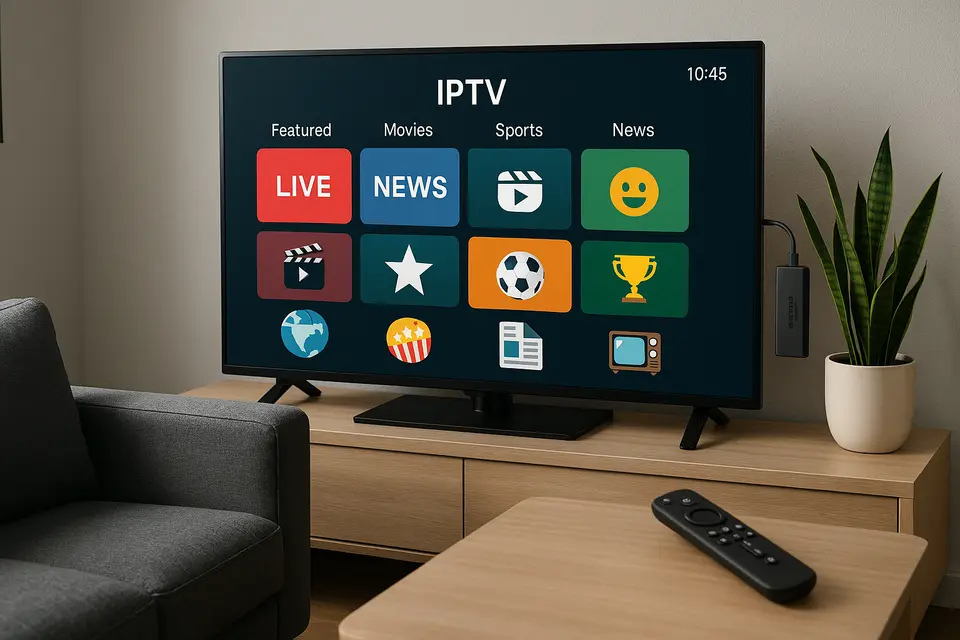
If you’re a Firestick owner seeking a versatile entertainment solution, IPTV streaming offers a straightforward path to watch your favorite shows, movies, and live TV. This guide will walk you through everything you need to know about setting up IPTV on your Firestick for a seamless viewing experience.
IPTV stands for Internet Protocol Television, delivering TV channels and on-demand content through your internet connection rather than traditional cable or satellite signals. Think of it as streaming television that uses M3U playlists or Xtream Codes accounts to organize channels and video content. For more information, visit Understanding IPTV.
Legitimate IPTV services work seamlessly with Amazon’s streaming device, provided you choose the right apps and follow proper setup procedures. Be aware to choose licensed providers to avoid legal issues.
Selecting effective IPTV solutions requires evaluating several critical factors. Here are some essential criteria to consider:
Official Provider Apps offer the most straightforward legal approach. These dedicated applications come directly from legitimate IPTV services.
Universal IPTV Players allow users to manage multiple providers. Examples include IPTV Smarters Pro and TiviMate. For installation guidance, refer to our complete guide on IPTV Smarters.
Free-to-Air Aggregators consolidate legally available broadcasts into a single interface, streamlining your viewing experience.
Setting up IPTV on your Firestick begins with ensuring you meet the basic requirements:
Enable “Apps from Unknown Sources” in Developer Options. This allows you to sideload apps not found in the official store.
Choose to install via Amazon Appstore or sideload using the Downloader app. For sideloading, enter the APK URL for your IPTV app and follow installation prompts.
Launch your IPTV app and add your playlist URL or Xtream Codes credentials as provided by your IPTV service.
IPTV Smarters Pro offers a user-friendly interface and supports both M3U and Xtream Codes. It’s great for beginners and features EPG support.
TiviMate is ideal for advanced users, offering multiple playlists and customizable layouts. It’s excellent for managing extensive channel libraries.
Perfect Player offers simplicity and stability, making it suitable for older devices or those with limited bandwidth.
GSE IPTV supports various formats and is adaptable across devices, making it great for multi-device households.
To ensure smooth IPTV streaming, consider the following tips:
Optimize your display settings and periodically clear background applications to maintain device performance.
Stick to legitimate services and consider using a VPN for added privacy. Always keep your apps updated.
If you encounter blank screens, restarting the app or your Firestick often resolves the issue.
Verify your M3U URLs and Xtream Codes credentials for any input errors. Contact your provider for assistance if necessary.
Choose IPTV providers that offer clear licensing information and avoid those advertising too-good-to-be-true deals. Ensure that you download applications from reputable sources.
VPN usage depends on your privacy preferences and local internet regulations. For an in-depth guide on VPNs for IPTV, visit this resource.
IPTV Smarters Pro offers the most user-friendly experience with a clear interface. For a setup tutorial, see this guide.
Contact your provider for updated M3U URLs or EPGs, then refresh the playlist within your app to load the changes.
IPTV technology is legal worldwide, but ensure your provider has the necessary licenses. For more details, visit this guide.
Providers may remove channels or update server issues. If you face consistent problems, check your provider status.
© 2025 iPvos All Rights Reserved | Terms | Privacy Policy | Refund Policy | Copyright Disclaimer | Affiliate Program| Blog