July 24, 2026

 Written by Jason Letts
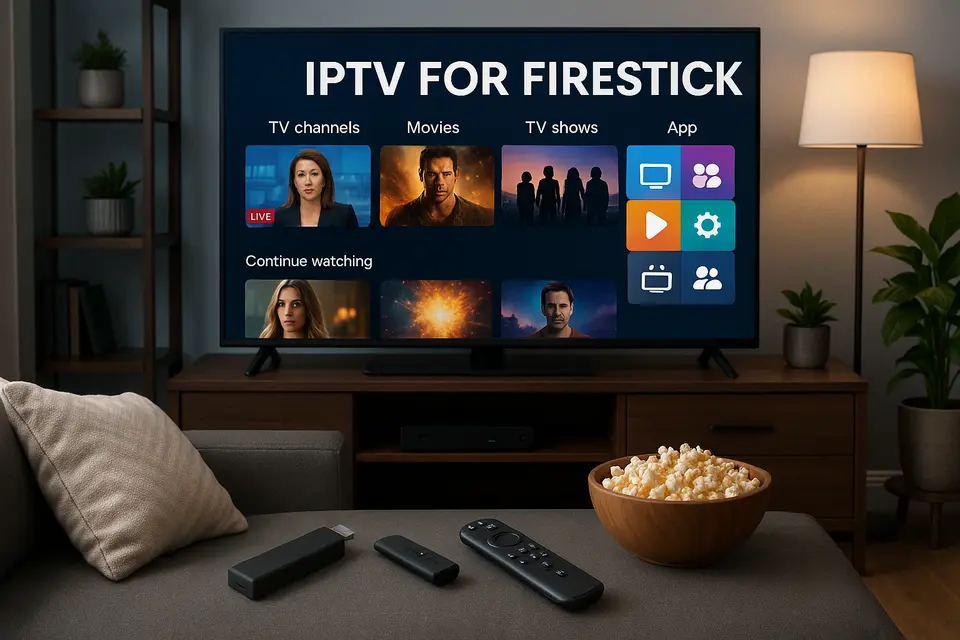
IPTV for Firestick provides a flexible way to access live TV and on-demand content on your Fire TV devices. Instead of traditional cable boxes cluttering your entertainment center, Internet Protocol Television delivers channels and movies directly through your internet connection to Fire TV Stick, Fire TV Cube, or Fire TV devices.
Picture this: you’re tired of paying $150+ monthly for cable packages filled with channels you never watch. IPTV for Firestick changes that game completely. You get access to live sports, breaking news, premium entertainment, and thousands of on-demand movies through lightweight apps that work seamlessly with your Fire TV remote.
Here’s what makes IPTV streaming on Fire TV devices so appealing:
This comprehensive guide covers everything you need to know about IPTV on Fire TV devices. You’ll learn how to evaluate the best IPTV for Firestick services, complete a foolproof IPTV Firestick setup, choose the right Firestick IPTV app, and troubleshoot common issues while staying safe and legal.
Source: https://www.done-iptv.com/fire-tv-iptv-setup-guide-2026/, https://troypoint.com/top-iptv-players/
Choosing the best IPTV for Firestick requires understanding that IPTV setups have two essential components: the IPTV service provider (who gives you channel access and credentials) and the IPTV player app (installed on your Firestick to stream those channels).
Too many people get burned by flashy promises and end up with services that buffer constantly or disappear overnight. Smart buyers focus on these critical factors:
Reliability and uptime top the list because what good is cheap IPTV if it crashes during the Super Bowl? Quality providers maintain stable servers even during high-traffic events. Look for services with 99%+ uptime guarantees and redundant server infrastructure.
Buffering performance depends heavily on your internet connection, but excellent IPTV services work smoothly with 25 Mbps for HD content and 50+ Mbps for 4K streaming. Avoid providers whose streams stutter even on fast connections.
Channel lineup and video-on-demand libraries should match your viewing preferences. International viewers need regional channels, sports fans require comprehensive coverage, and families want kid-friendly content with parental controls.
EPG support makes or breaks the user experience. Electronic Program Guides show what’s playing now, upcoming schedules, and often enable catch-up viewing. Services with accurate, regularly updated EPG data feel like premium cable replacements. https://ipvos.com/blog/optimizing-your-iptv-epg-guide
App compatibility ensures your chosen service works with top Firestick IPTV players like TiviMate, IPTV Smarters Pro, and XCIPTV. Universal compatibility means you can switch apps if needed without changing services.
Transparent pricing and trial options separate legitimate providers from scams. Reputable services offer clear monthly pricing, money-back guarantees, and often free trials so you can test performance before committing. https://ipvos.com/blog/iptv-free-trial-complete-guide
Customer support quality becomes crucial when technical issues arise. Look for providers with responsive live chat, detailed setup guides, and active user communities.
Legal compliance and licensing protects you from potential legal issues. Prioritize services that operate with proper licensing or focus on legal, free IPTV options rather than questionable sources. https://ipvos.com/blog/is-iptv-safe-security-legality
Source: https://www.youtube.com/watch?v=gahZzu0W9n0&vl=en, https://www.done-iptv.com/fire-tv-iptv-setup-guide-2026/
Fully legal, free IPTV services include apps offering news channels, classic movies, and niche content with advertising support. These apps often appear directly in Amazon’s Appstore, making installation simple and safe. The downside? Limited premium sports and recent blockbuster movies.
Official streaming TV bundles from established companies provide licensed content with professional customer support and guaranteed uptime. These cost more monthly but deliver reliability and legal peace of mind that budget alternatives can’t match.
Unofficial IPTV providers flood the market with massive channel counts at incredibly low prices. While tempting, these services carry legal risks, unpredictable uptime, and minimal customer support. Many violate copyright laws and can disappear without notice.
For long-term satisfaction and legal safety, focus on licensed IPTV sources and always research your local laws before subscribing to any service.
Source: https://www.youtube.com/watch?v=XmVFzqwF9Q8, https://firestickhacks.com/best-iptv-services-for-firestick/
This IPTV Firestick setup guide takes you from zero to streaming in under 30 minutes. Most Fire TV IPTV installations follow this proven process that thousands of users have successfully completed.
Before starting your IPTV Firestick setup, gather these essentials:
Having your IPTV credentials ready prevents frustration during setup. Most providers email these details after purchase, typically including server URLs, usernames, and passwords needed for configuration.
Source: https://www.done-iptv.com/fire-tv-iptv-setup-guide-2026/
Many excellent Firestick IPTV apps require sideloading since they’re not available in Amazon’s Appstore. This process is completely safe and reversible:
Navigate to Fire TV Settings from the home screen. Select My Fire TV or Device & Software depending on your Fire TV version. Choose Developer Options and toggle Apps from Unknown Sources to ON.
Amazon displays a security warning, but sideloading from reputable sources poses no risk. You can disable this setting anytime after installing your IPTV apps.
Source: https://www.done-iptv.com/fire-tv-iptv-setup-guide-2026/
Downloader acts as your gateway for installing IPTV apps not found in Amazon’s Appstore. This free tool simplifies the entire sideloading process.
From the Fire TV home screen, select the Search icon and type “Downloader.” Choose the official Downloader app from the results and click Download or Get. After installation completes, open Downloader and grant any requested permissions.
Downloader’s interface is intentionally simple, with a large URL input field for downloading APK files directly to your Fire TV device.
Source: https://www.youtube.com/watch?v=gahZzu0W9n0&vl=en, https://www.done-iptv.com/fire-tv-iptv-setup-guide-2026/
Popular Firestick IPTV apps like IPTV Smarters Pro and TiviMate install easily through Downloader using specific URLs:
For IPTV Smarters Pro, enter the Fire TV download URL in Downloader (these URLs are provided in IPTV setup guides). Click Go and wait for the APK file to download completely. Select Install when prompted, then choose Done followed by Delete to remove the installation file and free storage space. https://ipvos.com/blog/iptv-smarters-to-firestick/
TiviMate follows the identical process using its own Fire TV download URL. Both apps install within 2-3 minutes on modern Fire TV devices.
After installation, your chosen Firestick IPTV app appears in the Apps & Channels section of your Fire TV home screen.
Source: https://www.done-iptv.com/fire-tv-iptv-setup-guide-2026/
Open your newly installed IPTV app and choose your configuration method. Most services support M3U playlists and Xtream Codes API logins:
M3U playlist setup: Select Add Playlist or Add User, choose M3U or Playlist URL, paste your M3U URL from your provider, name the playlist, and save. The app then loads your channels and EPG data automatically.
Xtream Codes setup: Choose Login with Xtream Codes API, enter your server URL, username, and password exactly as provided by your IPTV service, then confirm to sync channels and program guides.
Initial channel loading can take several minutes depending on playlist size and your internet speed. Larger channel packages with extensive EPG data require more time for the first sync.
Source: https://www.youtube.com/watch?v=gahZzu0W9n0&vl=en, https://www.done-iptv.com/fire-tv-iptv-setup-guide-2026/
Optimize your IPTV Firestick setup for smooth streaming by addressing common bottlenecks:
Network optimization: Use 5 GHz Wi-Fi instead of 2.4 GHz for less congestion and higher speeds. Position your Fire TV device close to your router with minimal obstacles. Consider a wired Ethernet adapter for maximum stability. https://ipvos.com/blog/iptv-dns-network-optimization-guide
Video quality settings: Set initial quality to Auto or match your connection speed (1080p for 25-50 Mbps connections). You can always increase quality later if performance remains smooth.
App-specific settings: Enable hardware acceleration if available, disable heavy interface animations, and clear app cache monthly to maintain peak performance.
Source: https://www.done-iptv.com/fire-tv-iptv-setup-guide-2026/
Choosing the right Firestick IPTV app dramatically impacts your viewing experience. These apps don’t provide content themselves but serve as players for your IPTV service’s channels and on-demand libraries.
TiviMate stands out among Firestick IPTV apps with its modern, TV-optimized interface that feels like premium cable TV. The app supports multiple playlists simultaneously, letting you combine different IPTV services or separate live TV from on-demand content. https://ipvos.com/blog/tivimate-leading-iptv-player
Advanced EPG management sets TiviMate apart, with accurate program schedules, detailed show information, and catch-up viewing when your IPTV service supports it. The recording feature works with compatible sources, turning your Fire TV into a DVR system.
Channel organization features include custom groups, favorites lists, and powerful category filters that help you find content quickly. The remote control responsiveness feels natural, with intuitive navigation that family members pick up immediately.
TiviMate’s premium license activates advanced features like multiple EPG sources, backup/restore functionality, and enhanced recording options. The free version handles basic IPTV viewing perfectly well.
Source: https://www.done-iptv.com/fire-tv-iptv-setup-guide-2026/, https://troypoint.com/top-iptv-players/
IPTV Smarters Pro delivers a complete IPTV experience with dedicated sections for live TV, movies, TV series, and catch-up content. The interface clearly separates different content types, making it easy to switch between live sports and on-demand movies.
Built-in player options include multiple decoder choices for optimal compatibility with different stream formats. Parental controls let families restrict access to adult content, while user profiles keep individual preferences separated.
The app handles both M3U playlists and Xtream Codes logins seamlessly, with automatic EPG updates and VOD catalog refreshes. Setup takes minutes, and the interface adapts well to Fire TV remote navigation patterns. https://ipvos.com/blog/iptv-smarters-to-firestick/
First-time EPG syncing can take longer than other apps, especially with large channel packages. Keep login credentials handy since app resets occasionally require re-entering service details.
Source: https://www.done-iptv.com/fire-tv-iptv-setup-guide-2026/, https://www.youtube.com/watch?v=PfuvlpunX6A
Select a Firestick IPTV app based on your specific needs:
Test multiple apps with your IPTV service since performance varies depending on playlist format, EPG data structure, and stream encoding methods your provider uses.
Source: https://troypoint.com/top-iptv-players/
Even perfect IPTV for Firestick setups encounter occasional problems. This troubleshooting section addresses the most frequent issues with practical solutions that actually work.
Buffering ruins the IPTV experience, but most causes have straightforward fixes:
Internet connection issues: Test your connection speed using a different app like YouTube or Netflix. If other services also struggle, restart your router and modem. Buffering often disappears after network equipment reboots.
Wi-Fi optimization: Switch from 2.4 GHz to 5 GHz Wi-Fi bands, move your Fire TV closer to the router, and eliminate interference from microwaves or baby monitors. Ethernet adapters provide the most stable connections.
Stream quality adjustment: Lower video quality from 4K to 1080p or 720p in your IPTV app settings. This reduces bandwidth requirements while maintaining watchable quality.
ISP throttling: Some internet providers deliberately slow streaming traffic. A VPN can bypass throttling by encrypting your traffic, though this adds complexity to your setup. https://ipvos.com/blog/enhancing-iptv-vpn-security
Source: https://www.youtube.com/watch?v=gahZzu0W9n0&vl=en, https://www.done-iptv.com/fire-tv-iptv-setup-guide-2026/
When channels won’t load or EPG data appears blank:
Verify your IPTV subscription remains active and hasn’t expired. Many providers send email warnings before service interruption, but these messages often land in spam folders.
Double-check all login credentials for typos. Copy and paste URLs, usernames, and passwords directly from your provider’s email rather than typing manually. Single character errors prevent successful authentication.
Force refresh your channels and EPG data using your app’s settings menu. Most IPTV apps include manual refresh options that re-download playlist and guide information. https://ipvos.com/blog/iptv-not-working-troubleshooting-guide
Close and restart your IPTV app completely, or reboot your Fire TV device if problems persist. Fresh app launches often resolve temporary connectivity glitches.
Source: https://www.youtube.com/watch?v=gahZzu0W9n0&vl=en
Follow this systematic approach when your IPTV for Firestick setup malfunctions:
This methodical approach identifies whether problems stem from your network, IPTV service, app configuration, or Fire TV device performance.
Understanding legal implications protects you from potential consequences:
Copyright concerns: Many online IPTV providers stream premium channels without proper licensing, potentially violating copyright laws. Stick to legitimate services with clear legal standing or official app store availability.
Security practices: Avoid downloading APK files from unknown websites or clicking suspicious links in IPTV forums. Use reputable sources recommended by established guides and keep your Fire TV firmware updated.
Service reliability: Unlicensed providers frequently suffer sudden shutdowns, leaving subscribers without recourse or refunds. Licensed services typically offer higher uptime, customer support, and legal protections.
Research your local laws regarding IPTV usage and prioritize services that operate transparently with proper licensing agreements. https://ipvos.com/blog/is-iptv-safe-security-legality
Source: https://www.youtube.com/watch?v=XmVFzqwF9Q8
Use this streamlined checklist to go from planning to watching IPTV for Firestick:
Device preparation:
Installation process:
Optimization steps:
Source: https://www.done-iptv.com/fire-tv-iptv-setup-guide-2026/
VPNs aren’t mandatory but some users report reduced buffering and increased privacy. Ensure VPN usage complies with local laws and your IPTV service’s terms of use. Quality IPTV services work perfectly without VPNs on most networks.
Some IPTV players and legal streaming apps are available through Amazon’s official store. However, popular options like TiviMate and IPTV Smarters Pro require sideloading, which explains why most setup guides include enabling unknown sources.
Different devices often use different playlist configurations, app versions, or network connections. Clear your Fire TV app’s cache, verify you’re using identical login credentials, and check your Fire TV’s Wi-Fi band settings. Phone apps sometimes receive updates before Fire TV versions.
IPTV technology itself is completely legal. However, accessing copyrighted content through unlicensed providers may violate local laws. Focus on legitimate services and understand your region’s regulations before subscribing to any IPTV provider.
Getting IPTV for Firestick working properly transforms your entertainment experience while potentially saving hundreds annually compared to traditional cable packages. This guide provides everything needed to choose reliable services, complete a successful IPTV Firestick setup, select the ideal Firestick IPTV app, and maintain smooth operation long-term.
Source: https://www.done-iptv.com/fire-tv-iptv-setup-guide-2026/, https://troypoint.com/top-iptv-players/
© 2026 iPvos All Rights Reserved | Terms | Privacy Policy | Refund Policy | Copyright Disclaimer | Affiliate Program| Blog