June 19, 2026

 Written by Jason Letts
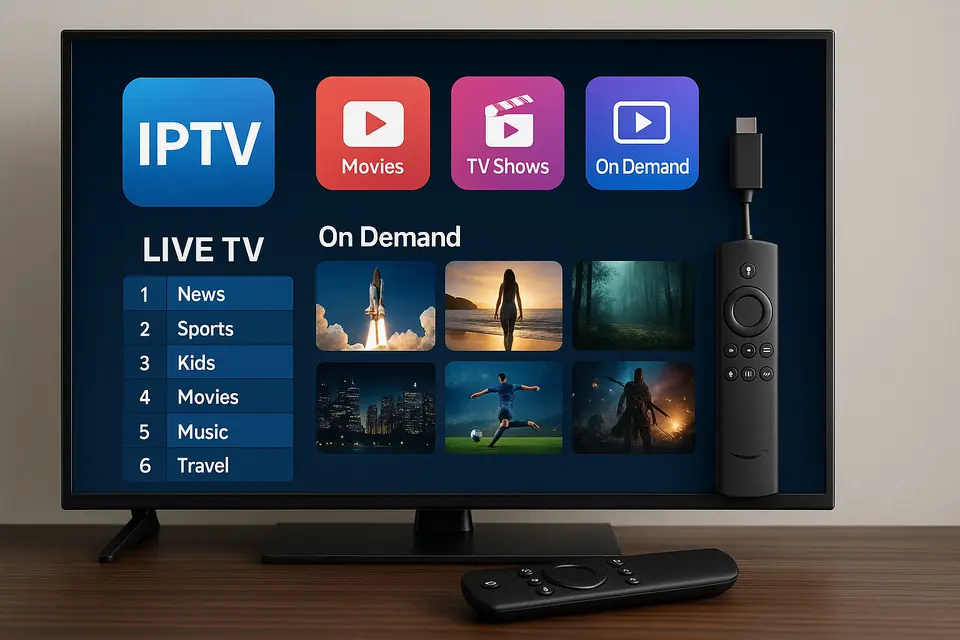
IPTV for Firestick opens up a world of streaming possibilities that goes far beyond traditional cable television. If you’ve been wondering how to transform your Amazon Fire TV Stick into a comprehensive entertainment hub, you’re in the right place. This guide covers everything from understanding what IPTV actually is to choosing the best services, completing your setup, selecting the perfect app, and troubleshooting common issues safely and legally.
Whether you’re cutting the cord completely or supplementing your current TV package, IPTV offers flexibility that cable and satellite simply can’t match. You’ll learn how to evaluate providers, avoid common pitfalls, and create a streaming setup that actually works reliably.
Internet Protocol Television delivers TV channels and video content over the internet instead of through traditional cable or satellite connections. Think of it as streaming that mimics the traditional TV experience but with far more control and flexibility.
The key differences from cable and satellite are significant:
The Amazon Fire TV Stick has become the go-to choice for IPTV streaming for several practical reasons:
Easy app installation stands out as the primary advantage. The Firestick supports both Amazon Appstore downloads and sideloading of IPTV players through tools like Downloader. You can install popular players like IPTV Smarters, TiviMate, and Perfect Player within minutes.
Compact and portable design means you can move your entire IPTV setup between TVs or take it when traveling. The small HDMI dongle fits anywhere and requires minimal setup.
Streaming quality meets modern expectations with support for HD and 4K content. Modern Firesticks handle smooth streaming when paired with adequate internet speeds, delivering crisp video and clear audio.
Remote and interface simplify navigation through channel lists, EPG guides, and on-demand catalogs. The familiar Fire TV interface makes finding content intuitive.
Storage and settings management provides enough space for multiple IPTV apps while allowing you to manage cache, app data, and privacy settings directly from the system menu.
Sources: source, source, source
Finding the best IPTV for Firestick requires looking beyond flashy promises of thousands of channels for unrealistic prices. Focus on selection criteria and evaluation methods that identify legitimate, reliable services.
Legality and licensing should top your priority list. Legitimate IPTV services clearly advertise licensed content or act as aggregators for legal sources. Be wary of services promising thousands of premium channels for tiny fees without clear licensing documentation.
Reliability and uptime separate good services from frustrating ones. Look for stable servers, minimal downtime, and consistent performance during peak events like major sports broadcasts.
Channel lineup and EPG quality determine your viewing experience. Verify the service includes your required local channels, sports networks, news, and international content. A working Electronic Program Guide is essential for the Firestick IPTV app you plan to use. source
Video quality and buffering performance directly impact enjoyment. Quality services offer HD/Full HD or 4K options with multiple stream qualities so you can adjust resolution based on your connection speed.
Price transparency and terms indicate legitimate operations. Reasonable, public pricing with clear terms, refund policies, and trial options suggest a trustworthy provider.
Privacy and account security protect your data and payment information. Look for HTTPS websites, secure payment methods, account security features, and clear policies about data usage.
Compatibility with Firestick players ensures smooth operation. The provider should work seamlessly with common IPTV players using M3U, Xtream Codes, or similar formats.
Use free trials or short-term plans to test performance on your specific Firestick setup before committing to longer subscriptions. Many legitimate providers offer 24-72 hour trials or monthly plans. source
Check user reviews carefully, focusing on mentions of Firestick performance, EPG functionality, app compatibility, and buffering issues.
Test during peak times by streaming in the evening or during major events when servers face maximum load.
Verify legality by confirming the service holds proper licensing in your region and offers only channels it has rights to distribute.
This IPTV Firestick setup process works for most Fire OS versions and IPTV apps, though specific steps may vary slightly based on your configuration.
Start by updating your Firestick software. Navigate to Settings → My Fire TV → About → Check for Updates and install any available updates.
If you plan to sideload apps, enable installation from unknown sources by first installing the Downloader app from the Amazon Appstore. Search for “Downloader” and download it. Then go to Settings → My Fire TV → Developer Options and turn on ADB debugging while enabling “Install unknown apps” for Downloader.
Configure privacy settings by going to Settings → Preferences → Privacy to reduce data collection and targeted advertising, which helps maintain privacy while streaming IPTV.
Choose between installing directly from the Amazon Appstore (if available in your region) or sideloading via Downloader using APK files.
Popular choices include IPTV Smarters Pro, TiviMate, Perfect Player, and other Firestick-compatible players.
For sideloading IPTV Smarters Pro:
More detailed setup steps for IPTV Smarters on Firestick are available here.
Open your chosen IPTV app and add a new playlist or user account. Common options include pasting an M3U URL provided by your service or entering Xtream Codes login details (server URL, username, and password). Give the playlist a recognizable name like “Family IPTV” or “Sports Package” and save the configuration.
For guidance on IPTV codes, M3U, and Xtream formats, see this explainer: source.
Once your playlist loads, optimize the setup by adding any EPG URL provided by your service and enabling automatic EPG updates. Create favorites for frequently watched channels and hide unused categories. Enable parental controls with PIN-based locking for adult content if needed. Choose your preferred channel view format (grid, list, or tiles) for optimal usability.
If you’re deciding between different Firestick IPTV players, our player comparison covers features and best choices: source.
Open several channels, including HD ones, to test stability and performance. If buffering occurs, lower video resolution in app settings, change the player engine if multiple options exist, or confirm your internet speed meets requirements (ideally 10-20 Mbps for HD content). For advanced tips on eliminating buffering, see: source.
Advanced IPTV apps may support syncing settings or playlists across devices using accounts or backup files. Some support cloud playlists that update automatically when providers change channels or links. Create or log into an account within the app and enable backup/sync functionality to share playlists and favorites across your devices.
Sources: source, source, source
Selecting the right firestick IPTV app significantly impacts your viewing experience. Different apps offer varying interfaces, features, and performance levels.
Verify compatibility with your provider’s format (M3U, Xtream Codes, etc.) before installation. Evaluate the user interface and how well it works with the Firestick remote. Consider features like multi-playlist support, catch-up TV, DVR functionality, EPG support, and channel grouping. Assess performance and how smoothly the app runs on Firestick hardware.
IPTV Smarters Pro supports both Xtream Codes and M3U URLs with comprehensive features including live TV, video-on-demand, series, and sometimes catch-up functionality depending on your provider. The app includes user profiles, EPG integration, favorites management, and parental controls. Install by sideloading via Downloader if not available in your regional Appstore, then choose your login method on first launch. More on installing Smarters here.
TiviMate offers a powerful EPG with a modern, intuitive interface. Features include multi-playlist support, advanced channel grouping, favorites management, and sophisticated guide management. Premium versions often include recording (DVR) and catch-up features when supported by providers. Install through Downloader or Amazon Appstore depending on regional availability, then add M3U/EPG URLs in settings. Learn why TiviMate is popular and how to set it up: source.
Perfect Player provides a lightweight IPTV solution with flexible list and grid views. The app supports M3U and EPG integration with OSD menus and extensive channel organization options. Install via APK using Downloader, add your M3U playlist and EPG URL, then configure decoder options if playback issues occur.
FireVisionIPTV represents an open-source option designed specifically for Fire TV and Android TV. The app features server-synced lists, category browsing, and favorites management. Install compatible builds through sideloading and configure server or playlist details as supported by the application.
Source: source
Even with reliable services, technical issues can occur. This troubleshooting guide addresses common problems with practical solutions.
Buffering or freezing streams often indicate network or performance problems. Test your internet speed on another device or speed test app. Move closer to your router or use an Ethernet adapter for improved stability. Lower stream quality in your IPTV app from 1080p to 720p if needed. Try different channels or backup servers when available. For targeted fixes to buffering, check this guide: source.
Playlist or M3U URL loading failures usually stem from input errors or subscription issues. Verify you copied the URL exactly without extra spaces or missing characters. Confirm your subscription remains active and the provider hasn’t changed URLs. Test the URL in a browser or another device if permitted. Contact provider support or try a different app if problems persist. For a deeper dive into playlist management and troubleshooting, see the guide on managing and optimizing playlists: source and the codes guide: source.
App crashes or startup failures require clearing app data and cache. Navigate to Settings → Applications → Manage Installed Applications, select your IPTV app, then Force Stop and Clear Cache. Use Clear Data if necessary, though you’ll need to re-enter playlist information afterward. Keep both your Firestick OS and IPTV app updated to current versions.
Login problems with Xtream Codes typically involve credential or configuration errors. Double-check username, password, and server details from your provider. Verify you selected the correct login method (M3U versus Xtream). Contact your provider if previously working credentials now fail, as they may have changed servers or implemented IP restrictions.
Some users employ VPNs while streaming IPTV for privacy or to avoid ISP throttling. If using a VPN, ensure the server is fast and geographically close to your location. If IPTV fails with VPN enabled, try different servers or temporarily disable the VPN to isolate the issue. For recommendations and setup best practices, see our IPTV VPN guide: source.
Single channel failures typically indicate provider-side issues. If all channels fail in one app but work in another, switch to a different firestick IPTV app. When multiple apps fail despite good internet connectivity, contact your IPTV provider or consider switching to a more reliable service. For detailed troubleshooting of load and playback errors, this guide is helpful: source.
Understanding the legal and safety aspects of IPTV protects you from potential problems while ensuring an optimal viewing experience.
IPTV technology itself is completely legal as it simply describes delivering television over IP networks. Legality depends entirely on content licensing and whether the service has proper rights to distribute the channels and content it offers.
Official apps and services with appropriate licensing agreements operate legally. Unlicensed IPTV services that restream paid channels without authorization typically violate copyright laws in many jurisdictions and have faced significant enforcement actions. For help spotting scams and avoiding fraudulent services, see: source.
The Firestick device remains neutral in this equation. How you use it and what content you stream determines legal compliance.
Using unlicensed IPTV services or downloading suspicious APKs exposes you to several risks:
Prioritize IPTV apps and services from legitimate, reputable sources such as the Amazon Appstore or verified official websites. Avoid entering payment information on random apps or sites without HTTPS encryption and clear ownership information.
Use strong, unique passwords for all IPTV accounts and avoid reusing credentials from other services. Exercise caution with sideloaded APKs by only using trusted, verified sources with positive community feedback.
Regarding VPN usage, some viewers choose VPNs for privacy and to prevent ISPs from logging streaming activities. If you decide to use a VPN, select a reputable provider, install the VPN app on your Firestick, connect to a nearby server, then launch your IPTV app. Remember that VPNs affect privacy and routing but don’t make illegal streams legal.
IPTV (Internet Protocol Television) delivers television content over the internet rather than through traditional cable or satellite methods. This enables live channels, on-demand content, and catch-up features via compatible devices like the Firestick.
A VPN is not strictly required for IPTV on Firestick. Some users choose VPNs to enhance privacy or avoid potential throttling from internet service providers. Whether to use one depends on your privacy preferences, local laws, and ISP policies. VPNs don’t make illegal streams legal. For more on VPNs for IPTV, see: source.
Using IPTV on Firestick is legal when streaming from licensed, legitimate sources with proper content rights. Using unlicensed services that distribute copyrighted content without permission can violate laws in many regions.
Maintain a stable, high-speed internet connection with at least 10-20 Mbps per stream. Connect via 5 GHz Wi-Fi or Ethernet adapter when possible. Select IPTV providers known for good uptime and multiple quality options. Optimize app settings by reducing resolution if needed, clearing app cache periodically, and keeping Firestick OS updated.
Some IPTV apps like premium versions of TiviMate allow recording (DVR functionality) if your provider supports it and you have adequate storage. Features vary significantly by app, so check capabilities and any terms from your IPTV provider. For more on TiviMate features and setup, see: source.
© 2025 iPvos All Rights Reserved | Terms | Privacy Policy | Refund Policy | Copyright Disclaimer | Affiliate Program| Blog