July 6, 2026

 Written by Jason Letts
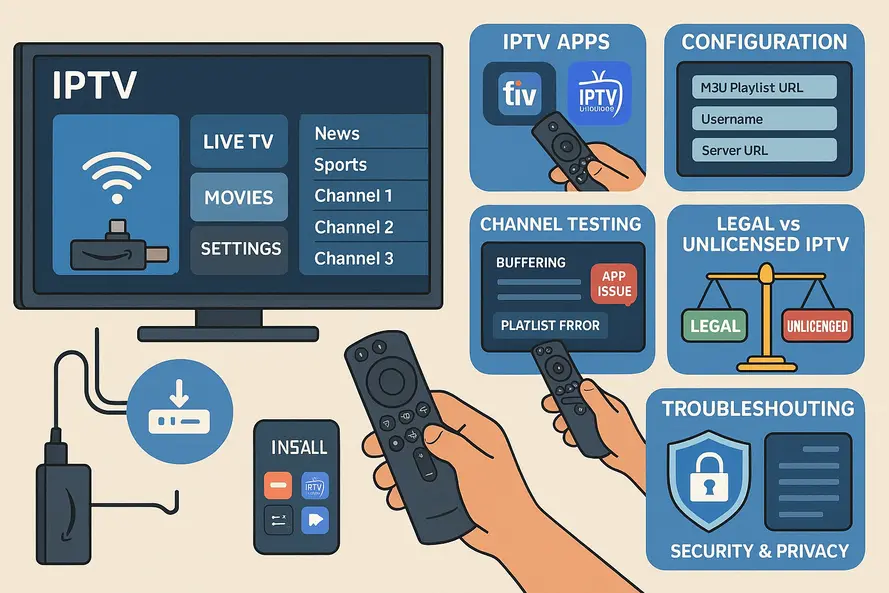
In today’s world of streaming, enhancing your viewing experience on the Amazon Firestick with IPTV (Internet Protocol Television) is a game-changer. This guide will help you navigate through setting up and optimizing IPTV for Firestick users.
Setting up IPTV for Firestick transforms your Amazon Fire TV Stick into a comprehensive live TV streaming device that delivers channels over the internet instead of traditional cable or satellite connections. Think of it as bringing cable-style channel surfing to your streaming stick, complete with program guides and live broadcasts.
IPTV works differently from your typical streaming experience. While Netflix or Prime Video serve up individual shows from their libraries, IPTV apps function as generic players that load channel playlists from various providers. You bring your own subscription or playlist, and the app displays the channels in a familiar TV guide format.
The Fire TV Stick handles IPTV through two main installation methods. You can download apps directly from the Amazon Appstore, like IPTV Smarters Pro, which offers a straightforward setup process. Alternatively, you can sideload Android apps using tools like Downloader to access popular players such as TiviMate or XCIPTV that aren’t available in Amazon’s official store.
Once installed, these apps accept M3U playlist URLs or Xtream Codes credentials from your IPTV provider. The app then downloads channel lists, imports Electronic Program Guide (EPG) data, and organizes everything into categories like News, Sports, and Movies. This creates a traditional TV-watching experience with the flexibility of internet streaming.
Finding the best IPTV for Firestick requires evaluating both the player app and your content source. The player app is your interface for watching channels, while your IPTV service provides the actual content streams.
Look for apps specifically optimized for Fire TV devices. These feature TV-friendly interfaces with large fonts and remote navigation that works smoothly with your Firestick remote. The best performers load channels quickly and maintain stable connections without frequent crashes or freezes.
Popular options include TiviMate IPTV Player, known for its polished Android TV interface and powerful EPG features. IPTV Smarters Pro offers broad compatibility and appears in the Amazon Appstore. XCIPTV Player provides a modern interface with strong VOD integration and parental controls.
Your chosen app should support multiple playlist formats, including M3U URLs and Xtream Codes login systems. Electronic Program Guide integration is crucial for browsing channels and scheduling; see our EPG optimization guide for tips on getting accurate guide data and time zone adjustments: EPG optimization guide.
Catch-up functionality lets you watch shows from previous hours or days if your provider supports it.
Advanced features like multi-screen viewing, DVR recording capabilities, and user profiles for families can significantly enhance your experience. However, these features depend on both your app choice and provider capabilities.
Licensed IPTV services have proper distribution rights and typically cost more but offer greater reliability and legal protection. These services often provide their own apps through official stores and maintain consistent uptime with customer support.
Unlicensed services frequently advertise “all channels for a few dollars” but carry significant risks. They violate copyright laws, may disappear suddenly, and can expose users to legal issues or security threats. For long-term reliability and safety, licensed services represent the best choice for Firestick IPTV. For more on safety and legality, see our guide on IPTV legal and security considerations.
Your IPTV Firestick setup begins with gathering the necessary components: a connected Fire TV Stick, stable internet connection (25 Mbps or higher recommended), and legitimate IPTV credentials or playlist URLs from your chosen provider.
Start by navigating to the Search function from your Firestick home screen. Type “IPTV Smarters” or another reputable IPTV app name available in your region’s Appstore. Select the app from search results and click Download.
After installation completes, find the app in Your Apps & Channels section. Launch the app to see login options including username/password entry, M3U URL input, or Xtream Codes API login. Choose the method matching your IPTV service format.
For M3U setup, enter the playlist URL exactly as provided by your service, along with any EPG URL for program guide data. Xtream Codes users input their server URL, username, and password. The app then downloads channel lists and imports guide information.
Sideloading allows access to apps like TiviMate that aren’t available in Amazon’s Appstore. Begin by enabling installation from unknown sources in your Firestick settings. Navigate to Settings > My Fire TV > Developer Options and turn on “Install unknown apps” for Downloader.
Install the Downloader app from the Amazon Appstore, then use it to visit official websites like tvmate.com for TiviMate or enter trusted Downloader codes for other apps. Download the APK file, install it when prompted, then delete the installation file to free storage space.
Move your newly installed app to the front of your apps list for easy access. Open the app and configure it with your playlist or Xtream Codes details, following similar steps to the Appstore method.
Regardless of installation method, spend time customizing your setup. Create favorite channel lists, organize content into categories, and adjust EPG time zones to match your location. Set up parental controls if needed and configure playback settings for optimal performance.
Test multiple channels across different categories to verify smooth playback and correct guide information. Check both SD and HD channels to ensure your internet connection handles the video quality you prefer.
Selecting the right Firestick IPTV app significantly impacts your viewing experience. Each popular option offers different strengths depending on your specific needs and technical preferences.
TiviMate stands out for its Android TV optimization and comprehensive feature set. The interface resembles traditional cable TV experiences with intuitive channel browsing and timeline views. Advanced users appreciate its support for multiple playlists, channel renaming capabilities, and robust EPG management.
Installation typically requires sideloading through Downloader using the official tvmate.com website. The app supports both M3U and Xtream Codes formats while offering premium features like recording and catch-up viewing where providers enable these functions.
IPTV Smarters Pro provides excellent compatibility across devices and often appears in official app stores. Its straightforward interface makes setup accessible for beginners while still offering advanced features like multi-screen viewing and VOD integration.
The app handles various playlist formats smoothly and includes built-in player options for different content types. Regular updates and broad provider compatibility make it a reliable choice for users seeking stability over cutting-edge features.
XCIPTV offers a modern interface with strong emphasis on video-on-demand integration alongside live channels. The app includes comprehensive parental controls and supports catch-up viewing when providers offer this functionality.
Installation often involves Downloader codes or direct APK downloads from trusted sources. XCIPTV excels at organizing large channel lists into manageable categories while maintaining responsive performance on Firestick hardware.
Look for apps supporting your preferred playlist format, whether M3U URLs or Xtream Codes authentication. Electronic Program Guide integration should be reliable and customizable, with options for different view modes and time navigation.
Performance factors include fast channel switching, stable video playback, and responsive menu navigation optimized for TV remotes rather than touchscreens. Regular updates from developers indicate ongoing support and security maintenance.
Even well-configured setups occasionally encounter problems. Most IPTV issues stem from network connectivity, playlist problems, or app-specific glitches that respond to systematic troubleshooting approaches.
Buffering typically indicates insufficient internet speed or network congestion. Test your connection speed using Firestick apps or other devices on your network, aiming for 25 Mbps minimum for HD content and higher for 4K streams. For proven fixes and optimization steps to eliminate buffering, see our detailed guide: Fix IPTV Buffering Guide.
Restart both your Firestick and network equipment when experiencing persistent buffering. Hold the Play/Pause and Select buttons simultaneously to reboot your Firestick, then power-cycle your router and modem to refresh network connections.
Playlist load failures often result from expired URLs or changed credentials. Verify your M3U URL or Xtream Codes details remain current by checking with your IPTV provider or testing the credentials on another device.
Re-import your playlist within the app by removing the existing configuration and entering details fresh. This process refreshes cached data that may have become corrupted or outdated.
Clear your IPTV app’s cache through Firestick settings under Applications > Manage Installed Applications. Select your IPTV app and choose Clear Cache to remove temporary files that may cause sluggish performance.
Update your app when possible, either through the Appstore for officially distributed versions or by reinstalling the latest APK for sideloaded applications. Developers frequently release performance improvements and bug fixes.
Experiment with different playback settings within your app, including hardware vs. software decoders and buffer size adjustments. These options can significantly improve performance on different network conditions and content types.
Responsible IPTV usage starts with choosing legitimate services that hold proper licensing for their content. Licensed providers typically cost more but offer legal protection, reliable uptime, and customer support when issues arise.
Avoid services advertising unrealistic channel packages at extremely low prices, as these typically involve copyright infringement and carry legal risks. Such services may disappear without notice, leaving subscribers without recourse or refunds.
Keep your Firestick and installed apps updated to receive security patches and performance improvements. Use strong, unique passwords for your IPTV service accounts and avoid sharing credentials across multiple services.
Consider reputable VPN services where legally appropriate, as they can provide privacy protection and sometimes improve routing to IPTV servers. For guidance on choosing and using a VPN with IPTV, see: Enhancing IPTV with VPN Security. However, ensure VPN usage complies with your local laws and service terms.
Avoid installing APKs from unknown sources or questionable websites that may bundle malware with legitimate-looking applications. Stick to official websites and trusted technology guides when sideloading apps.
Start by selecting a legitimate IPTV service and obtaining proper credentials, including M3U URLs or Xtream Codes login information. Research your chosen service’s reputation and licensing status before subscribing.
Choose between Appstore installation for maximum simplicity or sideloading for access to specialized apps like TiviMate. Follow installation steps carefully, enabling unknown sources only when necessary for sideloading.
Configure your chosen app with provider credentials, test multiple channels for stability, and customize favorites and categories to match your viewing preferences. Set up parental controls and adjust playback settings for optimal performance on your network.
Regular maintenance includes updating apps, refreshing playlists when providers make changes, and monitoring your network performance to ensure consistent streaming quality. With proper setup and legitimate services, IPTV on Firestick provides a reliable, flexible alternative to traditional cable television.
IPTV stands for Internet Protocol Television, which delivers content through the internet instead of traditional satellite or cable formats.
Unlike traditional cable TV that uses coaxial cables, IPTV uses internet connection for streaming content, allowing greater flexibility and access to a variety of channels.
To set up IPTV on Firestick, you’ll need a Fire TV Stick, a reliable internet connection, and IPTV credentials such as M3U URLs or Xtream Codes.
Yes, many IPTV services allow you to stream on multiple devices simultaneously, depending on your subscription plan.
The legality of IPTV depends on the service you choose. Ensure you use a licensed IPTV provider to comply with copyright laws.
© 2025 iPvos All Rights Reserved | Terms | Privacy Policy | Refund Policy | Copyright Disclaimer | Affiliate Program| Blog